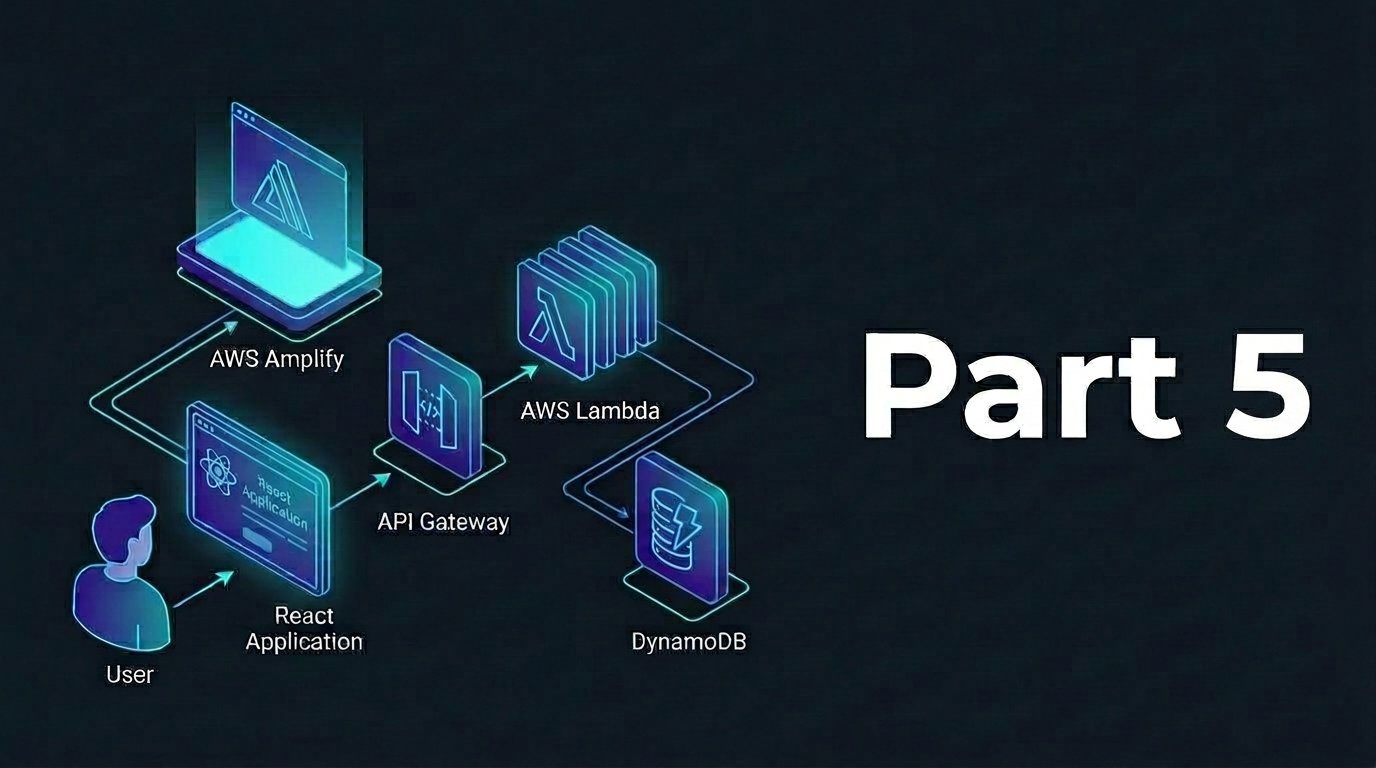
In this part we will create the frontend part of the application by using a react-based app deployed to AWS Amplify. Starting by checking out the code from github, examine the code, and we will continue to upload and configure it on AWS Amplify.
Step 1: Setup Code Repository
- Login to our Github account and visit to https://github.com/isuchan/aws-sa-projects
- Fork the repository by clicking Fork, then click Create fork to copy the whole repo to our own GitHub account
- Open terminal (or Git Bash on Windows) and clone the forked repository to local machine by replacing
<our-github-username>with our GitHub username:
git clone https://github.com/<our-github-username>/aws-sa-projects.git- Copy the project-4 directory into a new folder called product-inventory-frontend
cp -R /aws-sa-projects/project-4 product-inventory-frontend- Still using the terminal, go to the product-inventory-frontend and initialize a fresh git repository
cd product-inventory-frontend
git init
git branch -M master- From Github, create New Repository and name it product-inventory-frontend. Keep it empty by not creating either README or .gitignore file
- Link up our local directory to the new repository by replacing <our-username>
git remote add origin https://github.com/<our-github-username>/product-inventory-frontend.git- Add, commit, and push the code
git add .
git commit -m "Initial commit"
git push -u origin master
Then on github repository, we should have something like the following
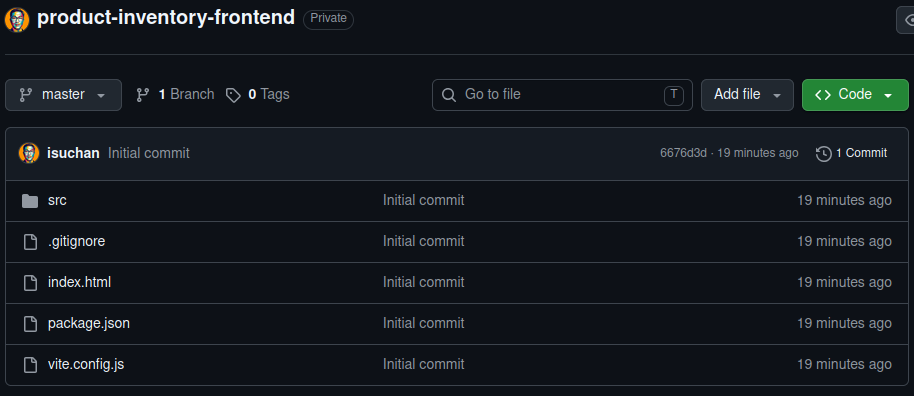
Step 2: Host Frontend Web App to AWS Amplify
- Navigate to AWS Amplify console
- Click Deploy an app
- Select Github as the git provider
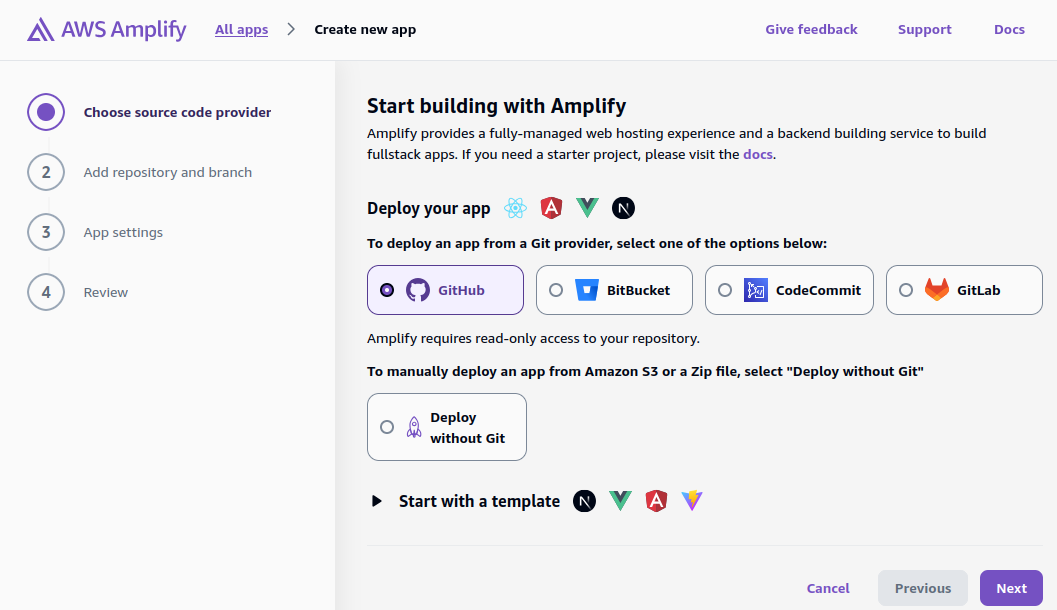
- To proceed further, we need to authorize AWS amplify to access our Github repository
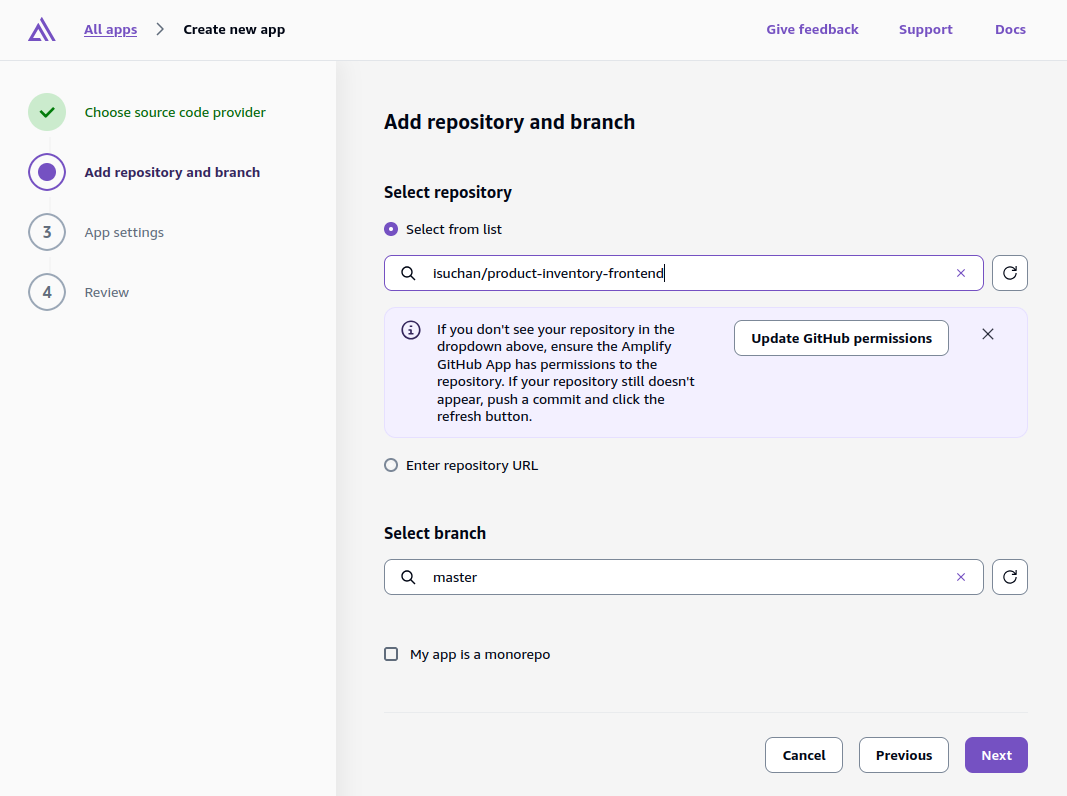
- In this case, we just allow a single repository access (product-inventory-frontend) and select branch name: master
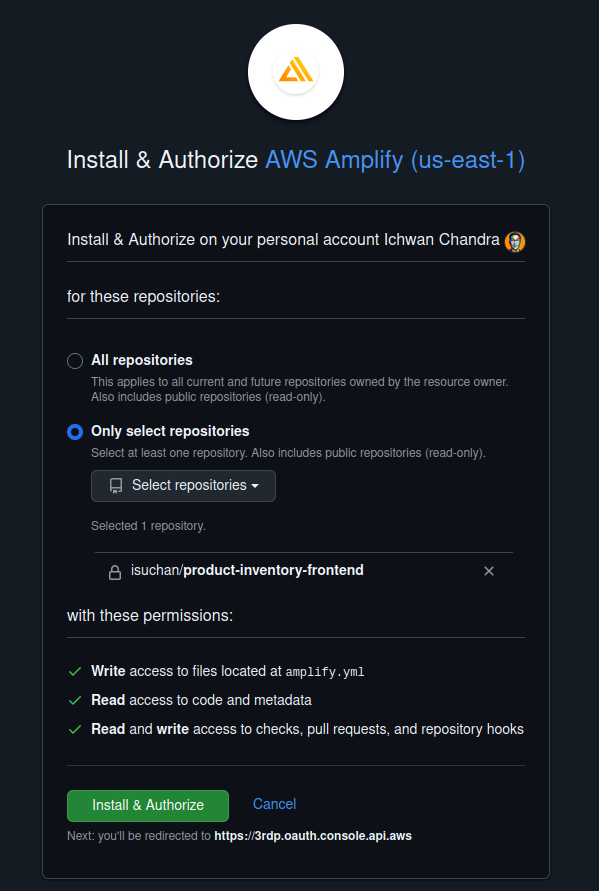
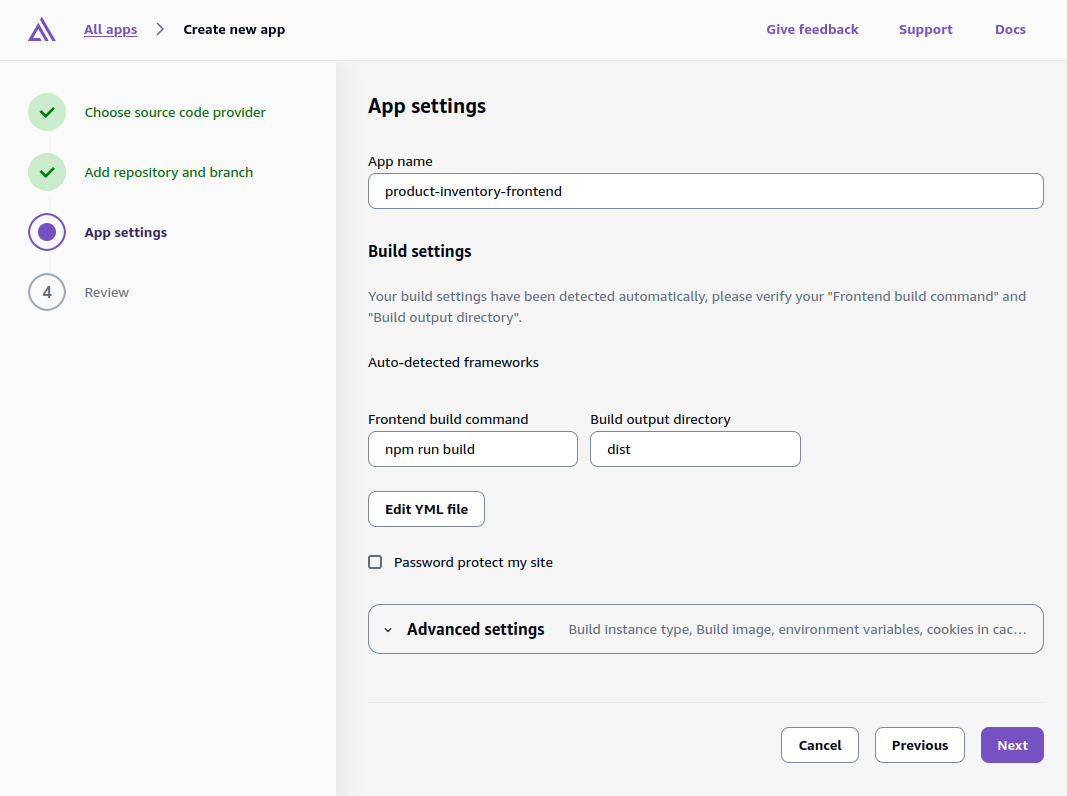
- AWS Amplify will automatically detect the build settings, so let’s keep it as it is
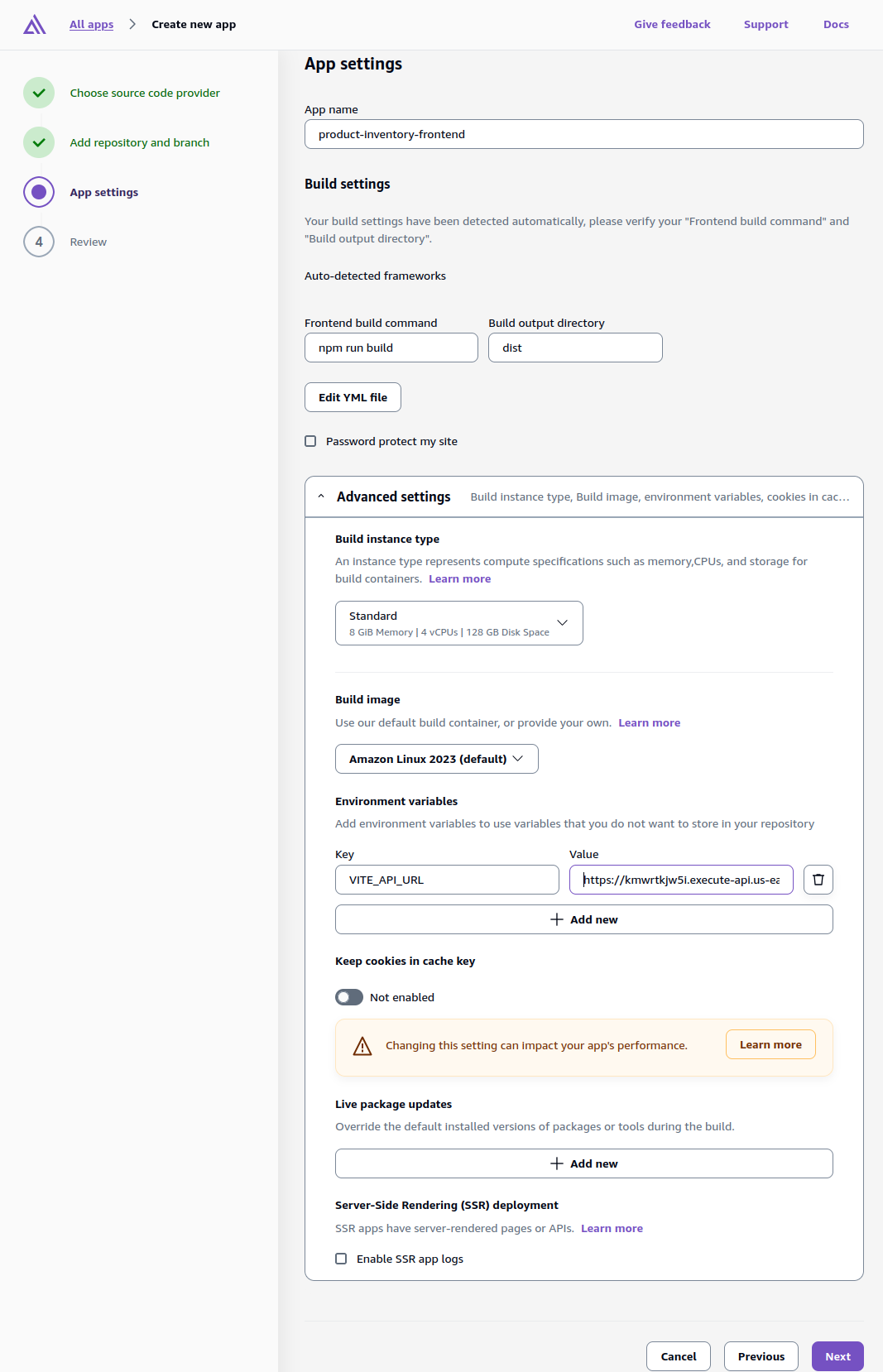
- Next, we need to adjust environment variables. Click Advanced settings, then click Add new under Environment variables
- Add the following key and value pair
- Key: VITE_API_URL
- Value: https://<your-api-id.execute-api.region.amazonaws.com> (without trailing slash)
- We can get this value from AWS API Gateway –> APIs –> Select our API –> select Stages from the side menu.
- Click $default as the stage, and then copy the Invoke URL
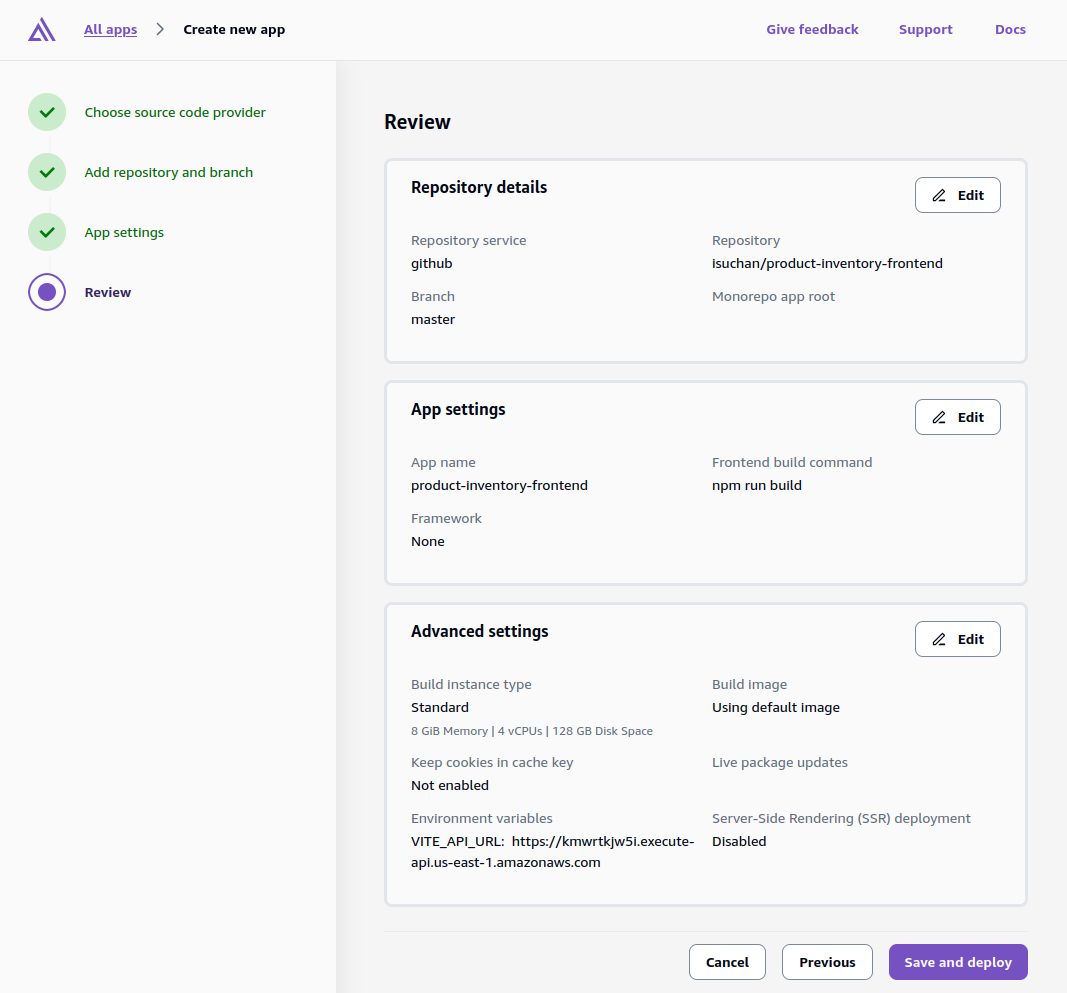
- Next, review the setting and click Save and Deploy and wait for the deployment to finish
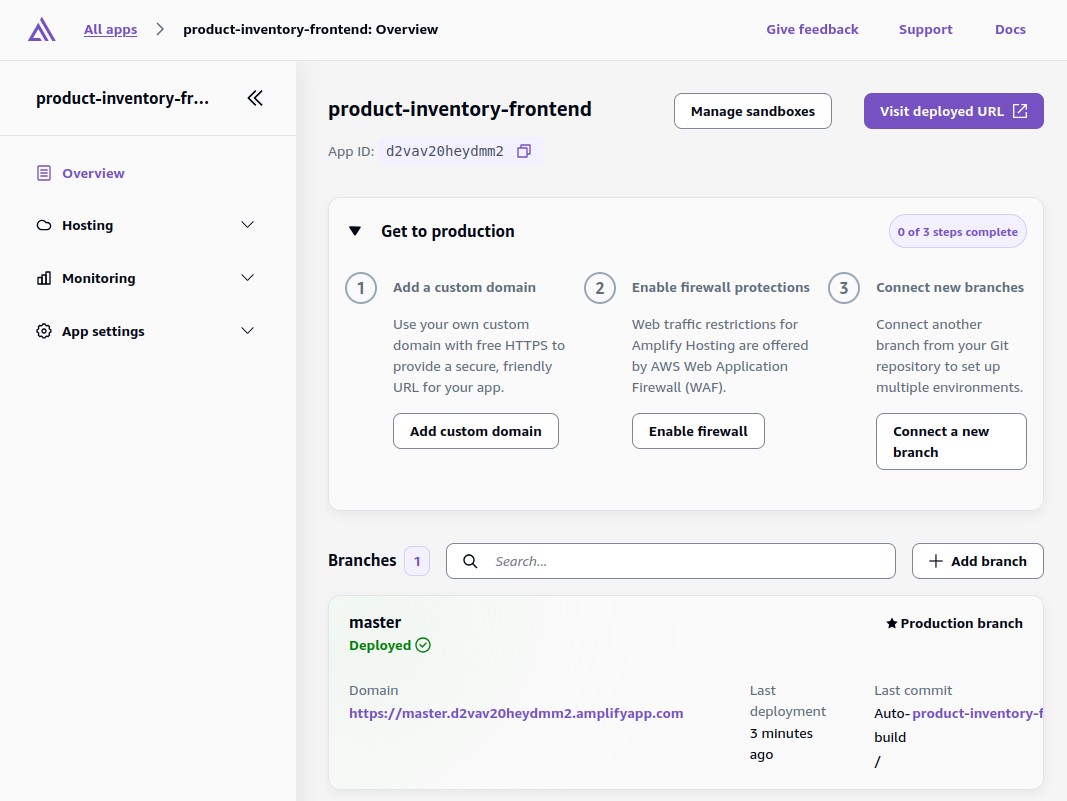
Step 3: Access Application & Configure CORS
- Access the deployed application by visiting the domain
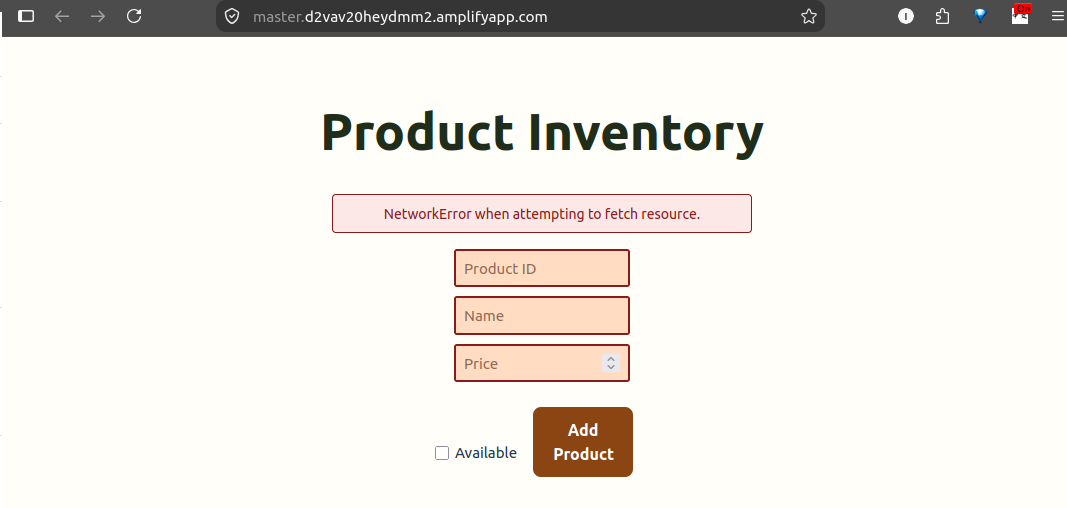
- Go back to the API Gateway Console, and select ProductInventory API
- From side menu, under Develop, click CORS, click Configure
- As we can see above, we got an error above due to CORS limitation. Let’s update the CORS settings by including our Amplify app URL
Access-Control-Allow-Origin:
**<https://main.d1234567890.amplifyapp.com> (Replace this with our Amplify app URL without the trailing slash)**

Access-Control-Allow-Headers:
**Content-Type, Authorization**

Access-Control-Allow-Methods:
**GET, POST, PUT, DELETE**
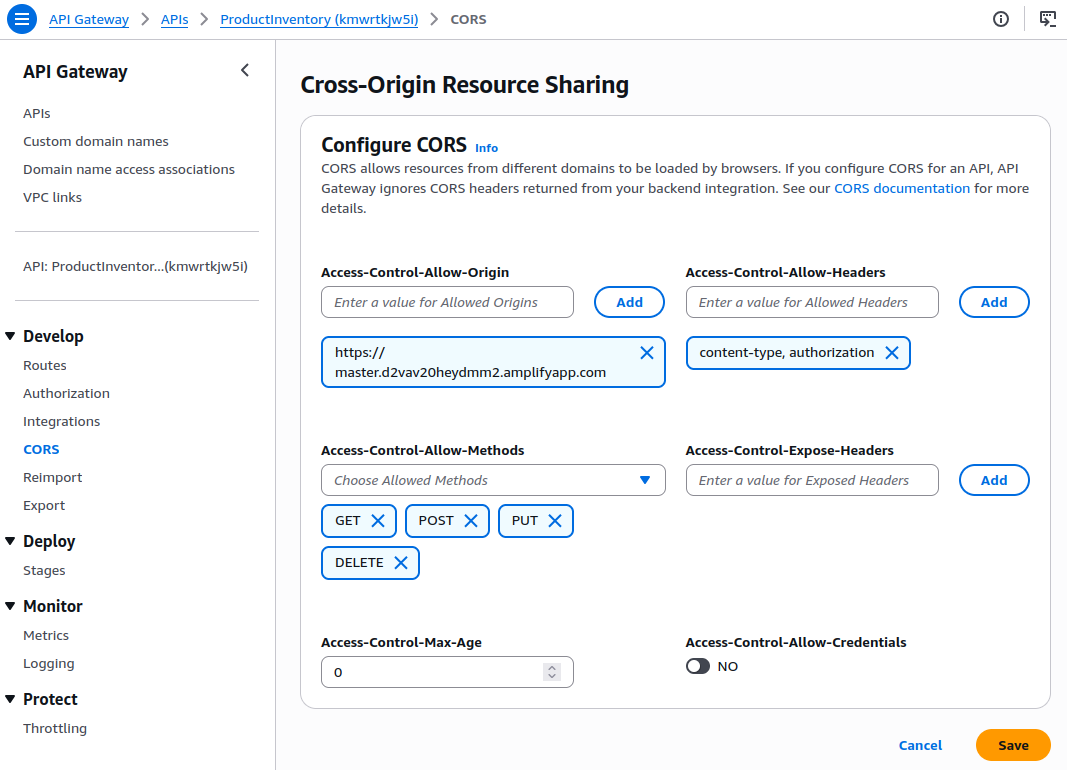
And then click Save.
Note: since we re using $default stage to deploy this front-end application, AWS Amplify will automatically deploy it
Now refresh the browser and the application should be running like below
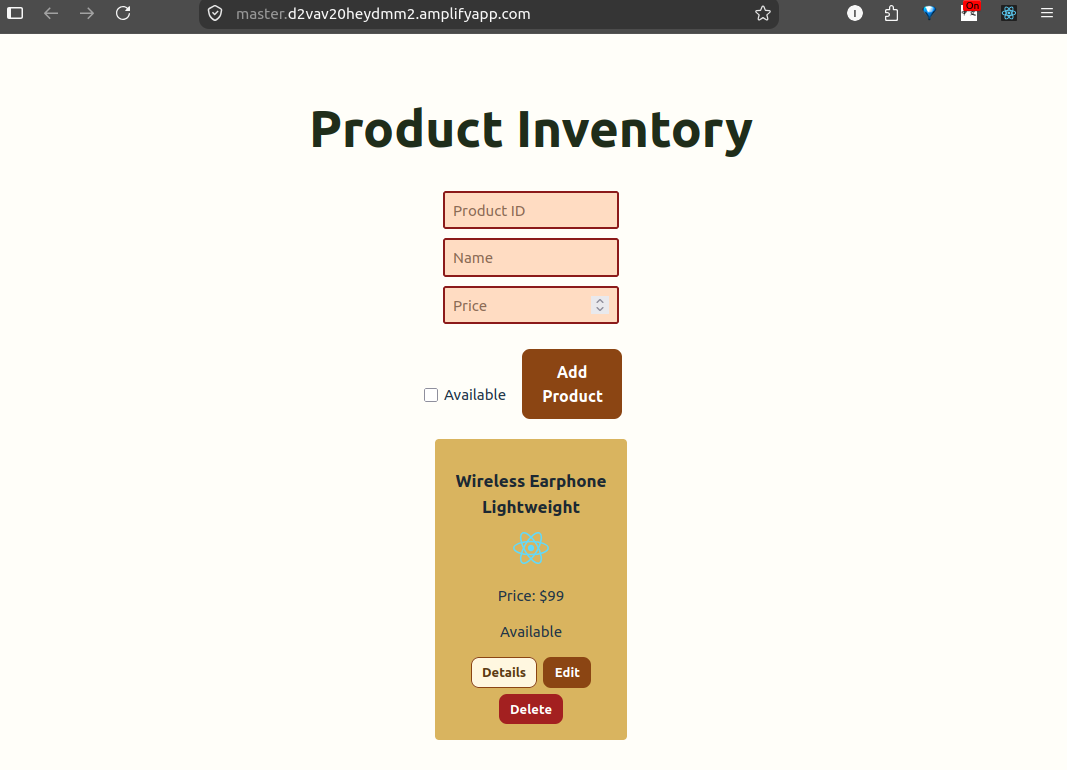
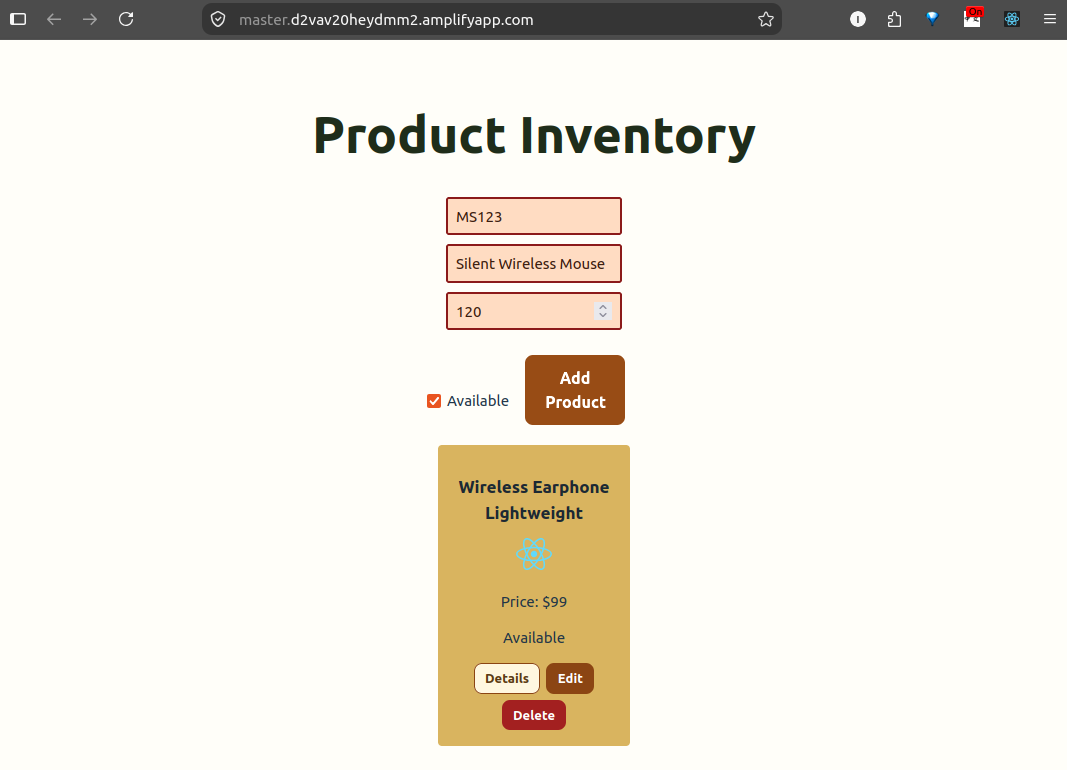
Let’s test the CRUD functionality by adding new product, then click Add Product
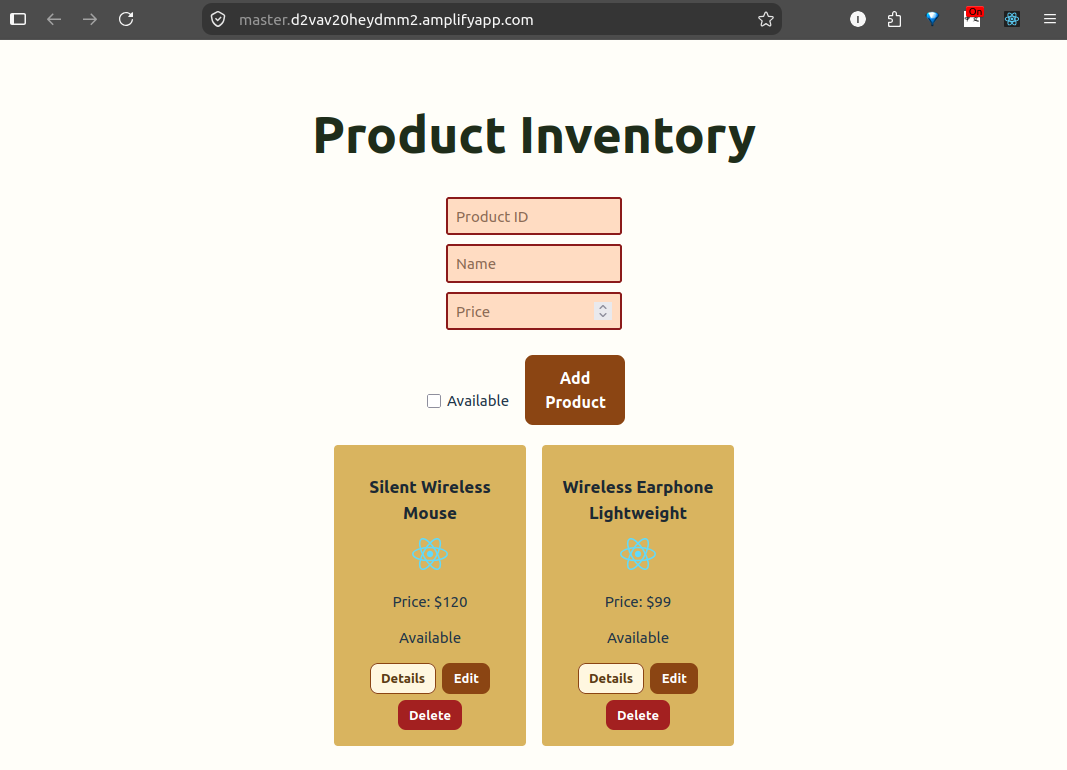
New product will be added to the list
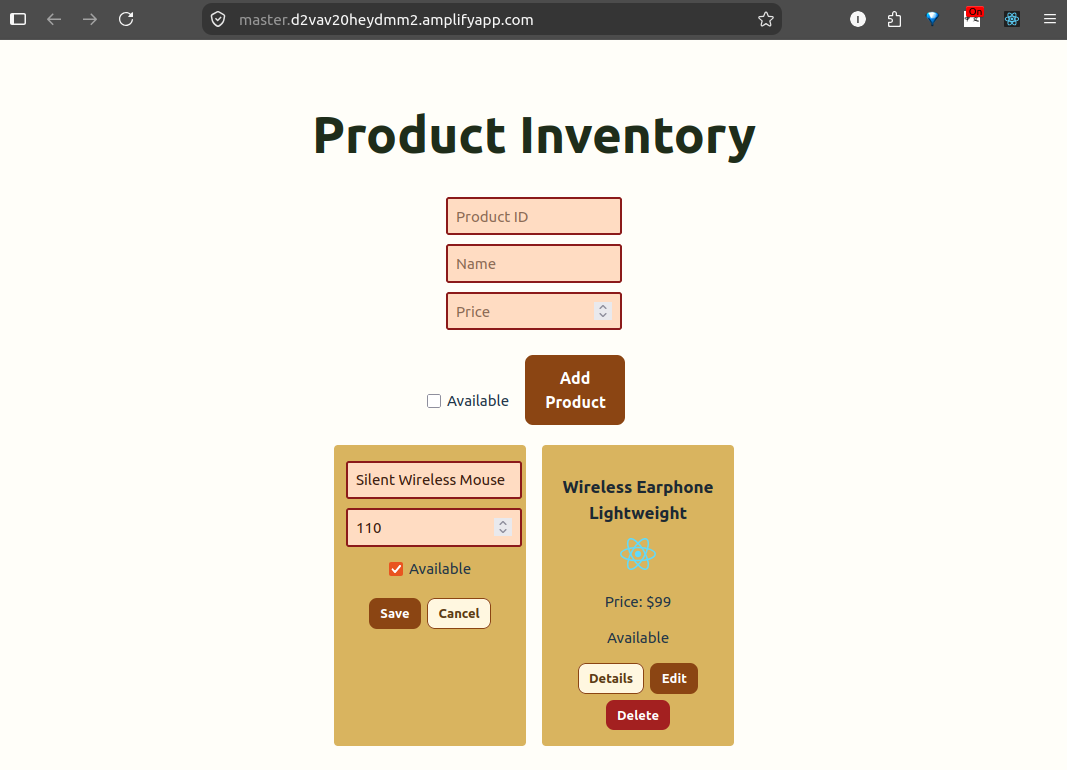
We also can click Edit on one of the products and change any of its attribute to update respective item before click Save
Using the developer tools on our browser, we can continue to check all the CRUD functionalities and ensure among all POST, DELETE, and PUT requests having no CORS errors.
Project Conclusion
In this project, we have been demonstrating a modern server-less architecture patterns by combining the Lambda function and API gateway to let the front-end application call it via REST API to perform commonly use CRUD functionalities. This reflects real world implementation where serverless is being used as part of cost-effective elastic scaling.
Resource Cleanup
To avoid ongoing AWS charges, remember to delete what we created:
- Ampify App
- Go to AWS Amplify App console, click App, click App Settings, click General Settings, click Delete App
- Go to AWS Amplify App console, click App, click App Settings, click General Settings, click Delete App
- API Gateway
- Go to API Gateway console, select StoreInventory API, click Actions, click Delete
- Go to API Gateway console, select StoreInventory API, click Actions, click Delete
- Lambda Functions
- Go to Lambda console, delete all previously created functions and the Lambda Layer
- Clean up log groups in CloudWatch Logs
- DynamoDB Table
- Go to DynamoDB console, select ProductInventory table, select Actions and delete table
- Go to DynamoDB console, select ProductInventory table, select Actions and delete table
- IAM Role
- Go to IAM console, select Roles, select ProductInventoryRole and delete it
- Go to IAM console, select Roles, select ProductInventoryRole and delete it
- CloudWatch Logs
- Go to CloudWatch, select Log groups
- Delete Lambda function log groups with /aws/lambda/product patterns such as /aws/lambda/addProduct, /aws/lambda/deleteProduct, /aws/lambda/getProduct