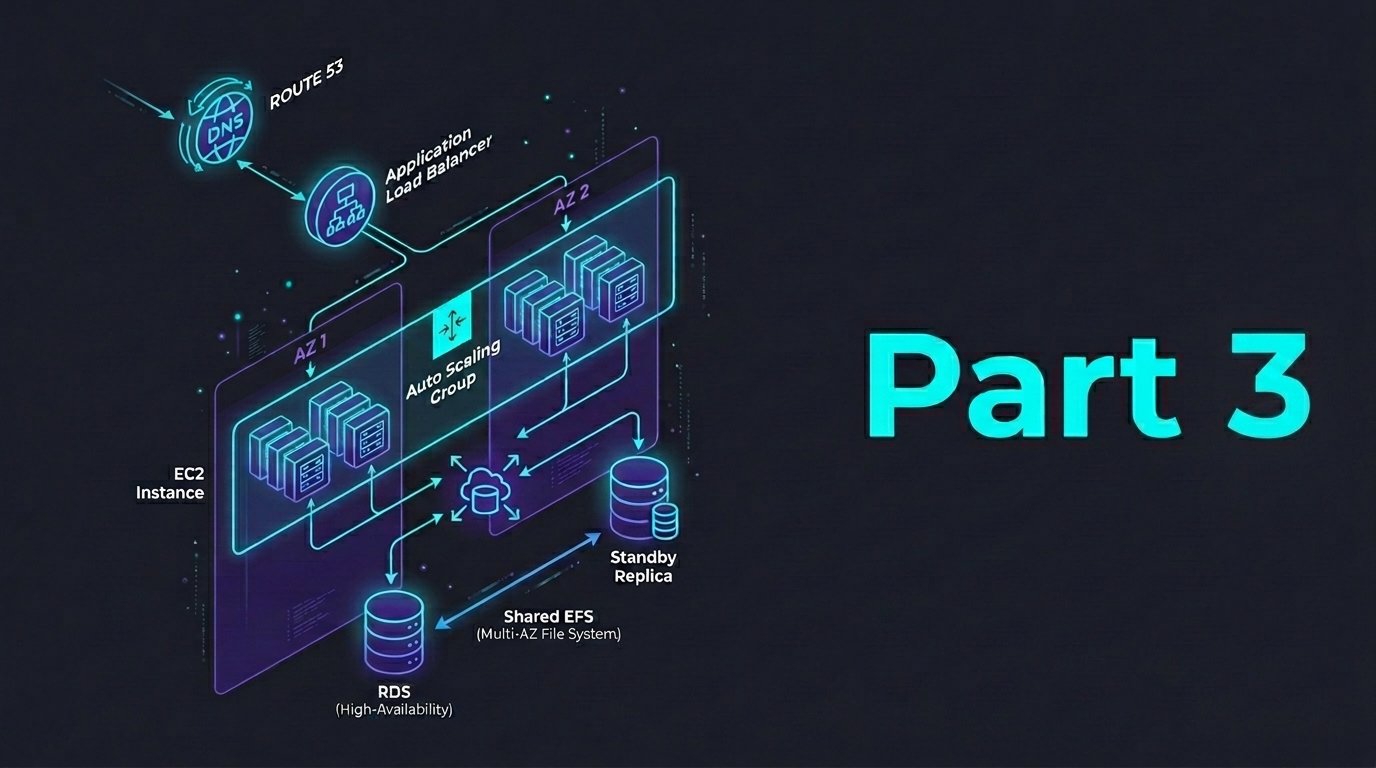
Apart from the multi-AZ infrastructure, we also need a way to intelligently route user traffic according to the system health. This means by configuring Route 53 DNS with health check ability to route traffic to our application via ALB and automatically failover once the ALB becomes unhealthy. This way, we can protect the user from seeing downtime during outages by routing them to a backup error page.
Step 1: Setup a Hosted Zone
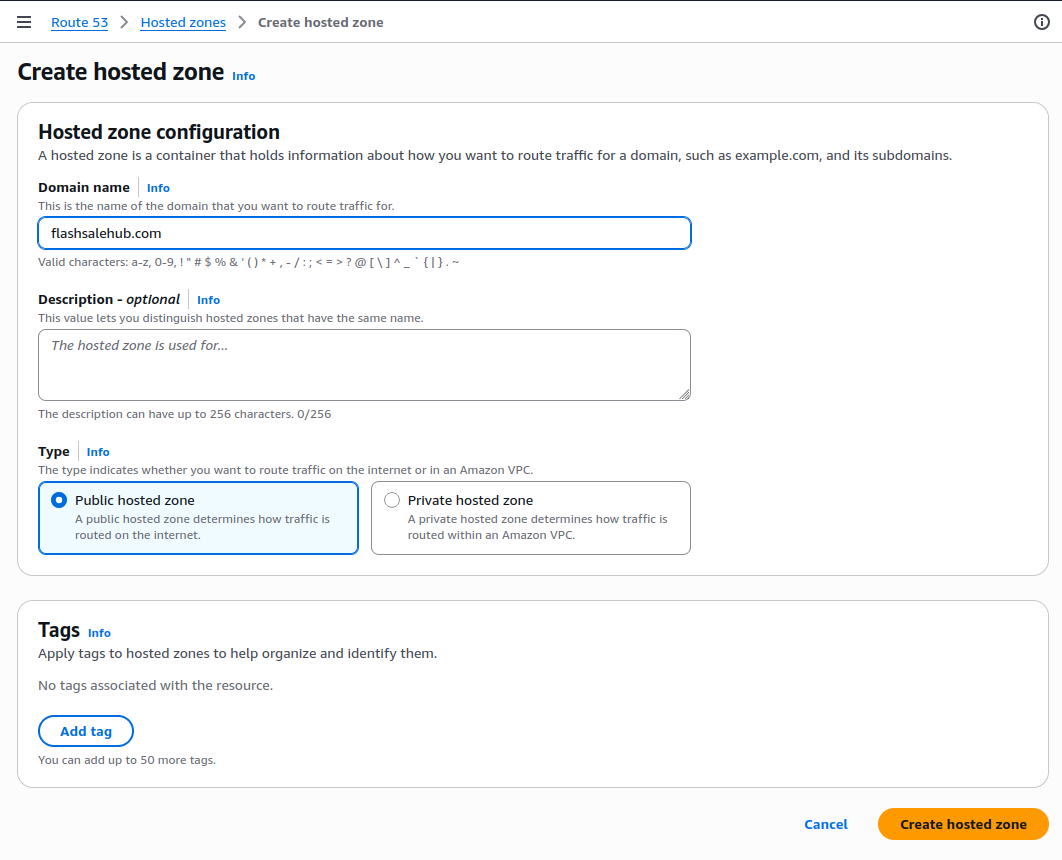
A hosted zone represents our domain in Route 53 and lets us manage DNS records programmatically and securely.
- Visit to Route 53, click Hosted Zones, click Create hosted zone
- Enter our domain name: (e.g., flashsalehub.com)
- Type: Public hosted zone
- Click Create hosted zone
Step 2: Setup a Health Check
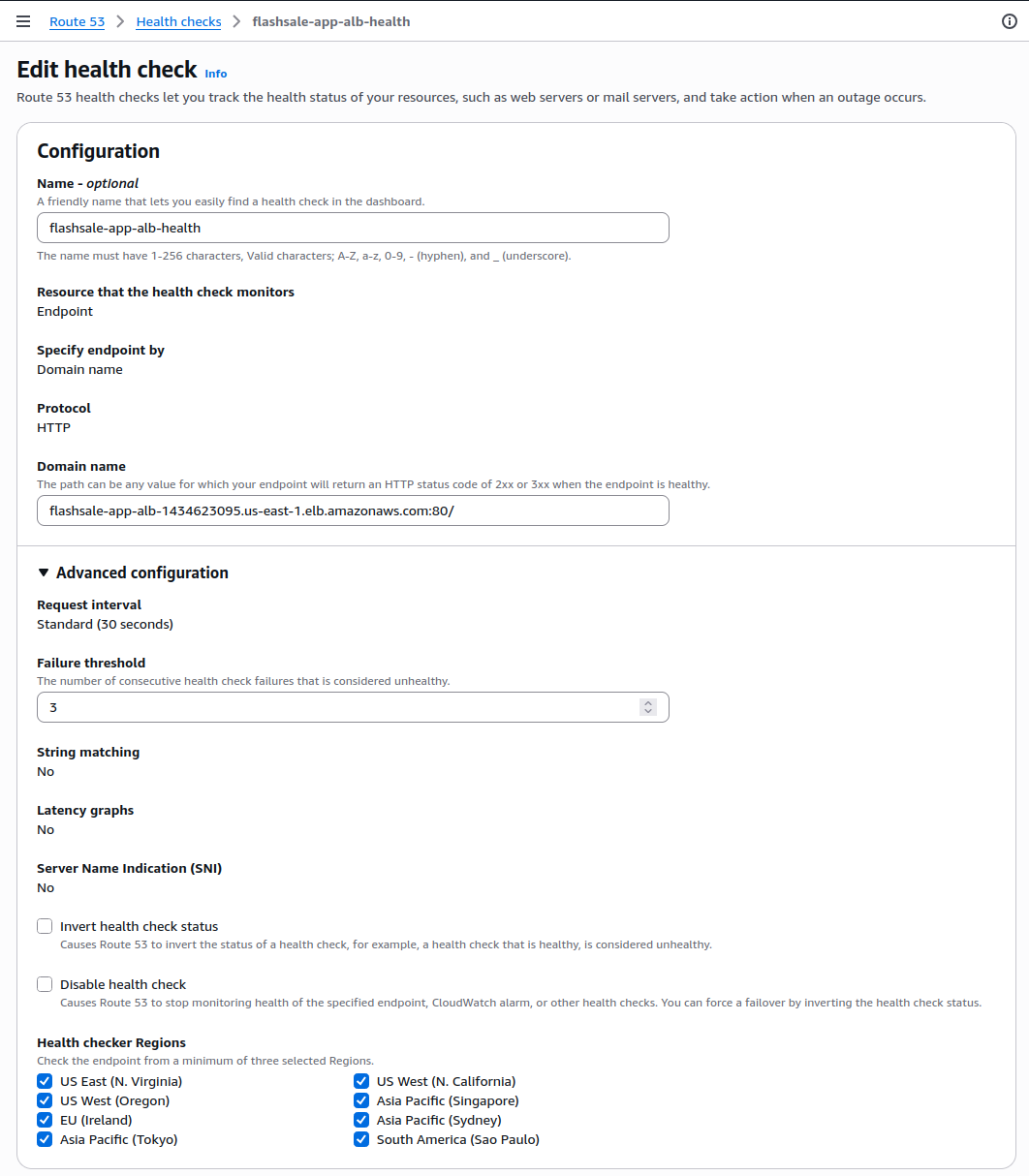
Health checks allow Route 53 to detect when our application is down and automatically fail over to a backup record.
- Visit to Route 53, click Health Checks, click Create Health Check
- Configuration:
- Name:
flashsale-app-alb-health - What to monitor: Endpoint
- Name:
- Specify endpoint:
- Protocol: HTTP
- Domain name: Use our ALB DNS name (e.g.,
flashsale-app-alb-1434623095.us-east-1.elb.amazonaws.com)
- Advance Configuration:
- Request interval:
30 seconds - Failure threshold:
3
- Request interval:
- Click Create health check
Step 3: Setup Primary DNS Record (with Health Check)
This DNS record routes users to our live app hosted on EC2 behind the ALB only if it’s healthy.
- In our Hosted Zone, click Create record
- Record type: A – IPv4 address
- Alias: Enabled
- Alias to Application Load Balancer
- Region: Select the correct region (e.g.,
us-east-1) - Alias target: Select
flashsale-app-alb - Routing policy: Failover
- Failover record type: Primary
- Associate the health check created in Step 2
- Record ID – failover-primary-record
- Enable – Evaluate health targets
- Click Create records
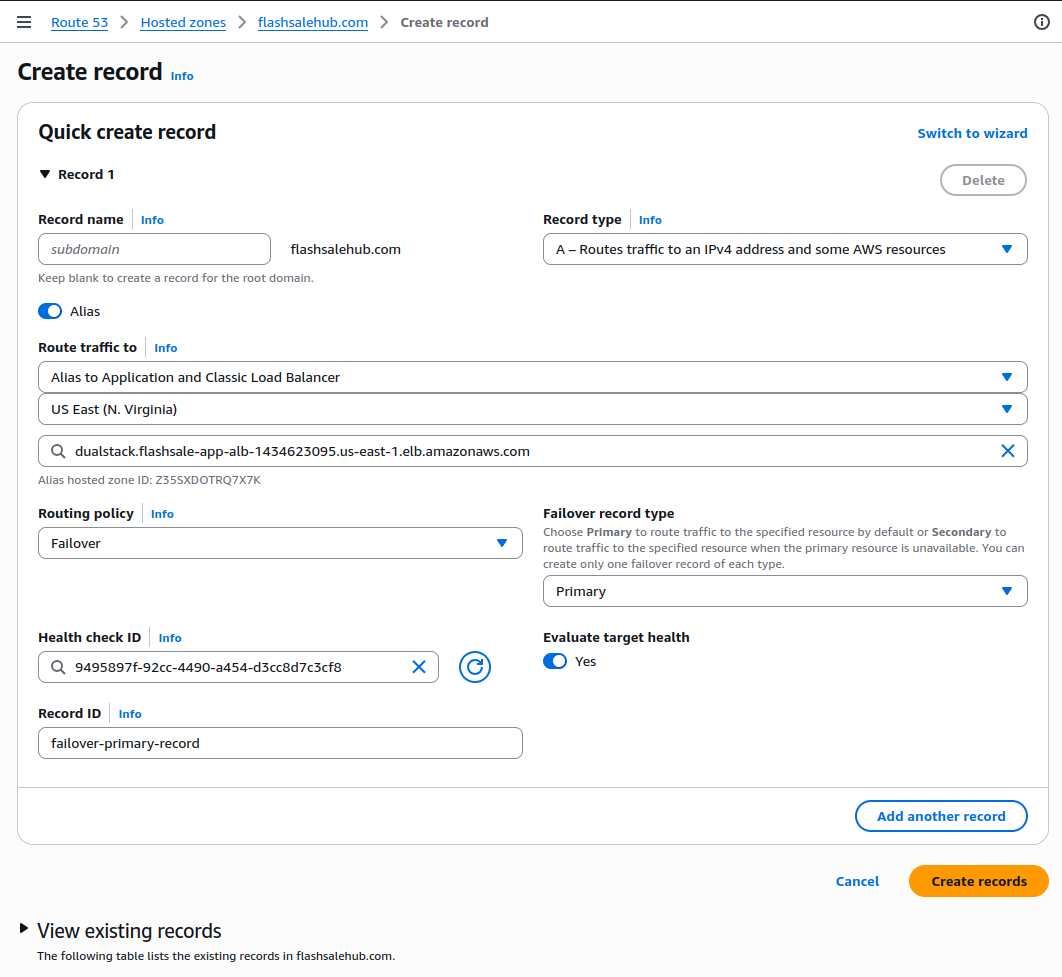
Based on the configuration above, the traffic will only be forwarded to the ALB if it’s passing the health check.
Step 4: Create The Backup DNS Record
If our app fails (ALB is unhealthy), Route 53 can send traffic to a static backup page typically hosted on Amazon S3. This helps ensure users still receive a proper message, even if our application stack is down.
Firstly, let’s setup the S3 static backup site
- Visit the S3 Console, Click Create bucket
- Bucket name: e.g.,
flashsale-failover-site - Region: Same as your app (recommended)
- Uncheck Block all public access → Acknowledge the warning
- Object Ownership → ACLs enabled
- Click Create bucket
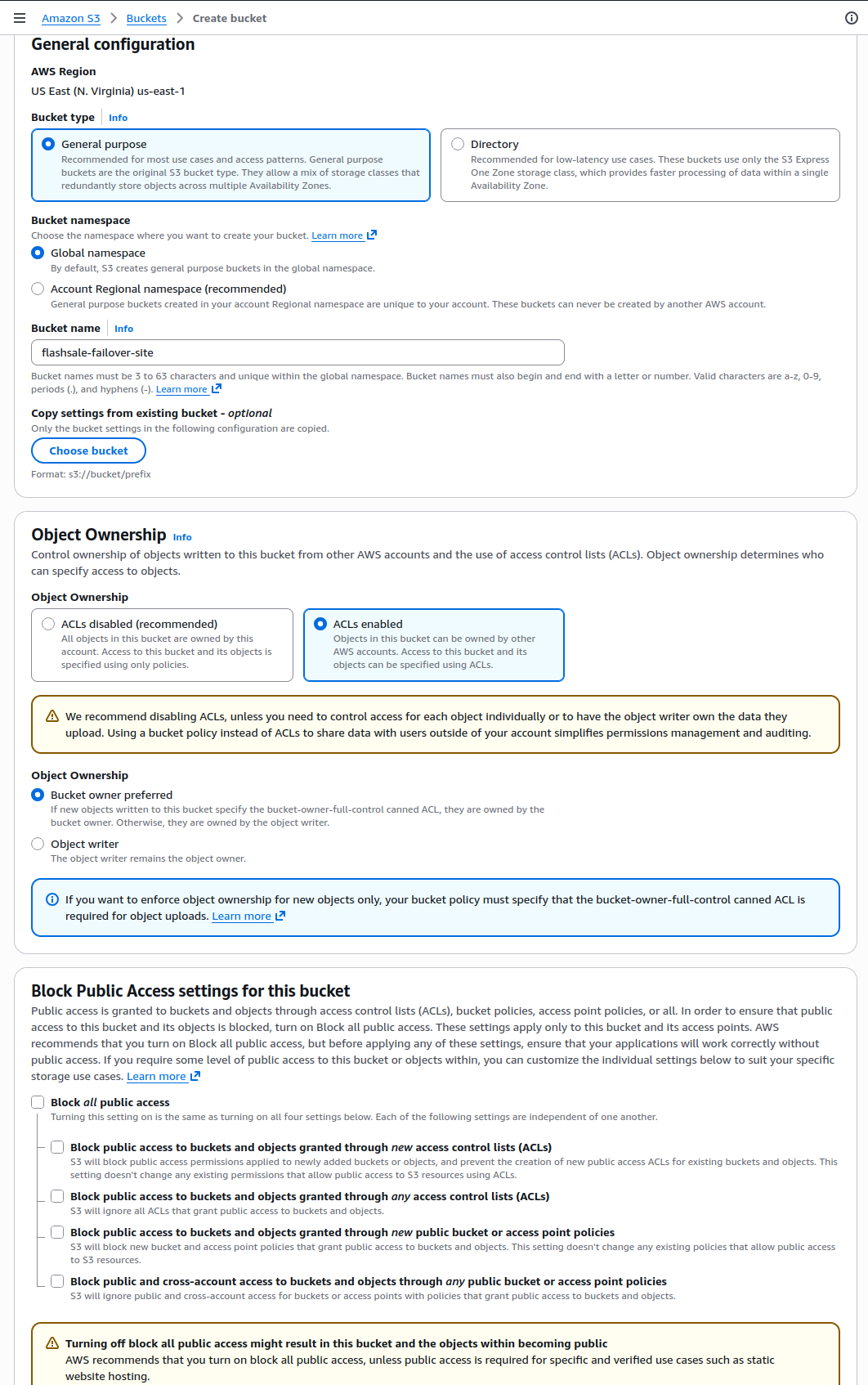
With your text editor, create the following dummy index.html file
<!DOCTYPE html>
<html lang="en">
<head>
    <meta charset="UTF-8">
    <meta name="viewport" content="width=device-width, initial-scale=1.0">
    <title>Flashsale App</title>
    <style>
        body {
            font-family: Arial, sans-serif;
            text-align: center;
            margin-top: 100px;
            background-color: #f4f4f9;
            color: #333;
        }
        h1 {
            color: #2c3e50;
        }
        p {
            font-size: 1.2rem;
        }
    </style>
</head>
<body>
    <h1>Hello!</h1>
    <p>We'll come back soon</p>
</body>
</html>
Save it and upload it to the S3 bucket
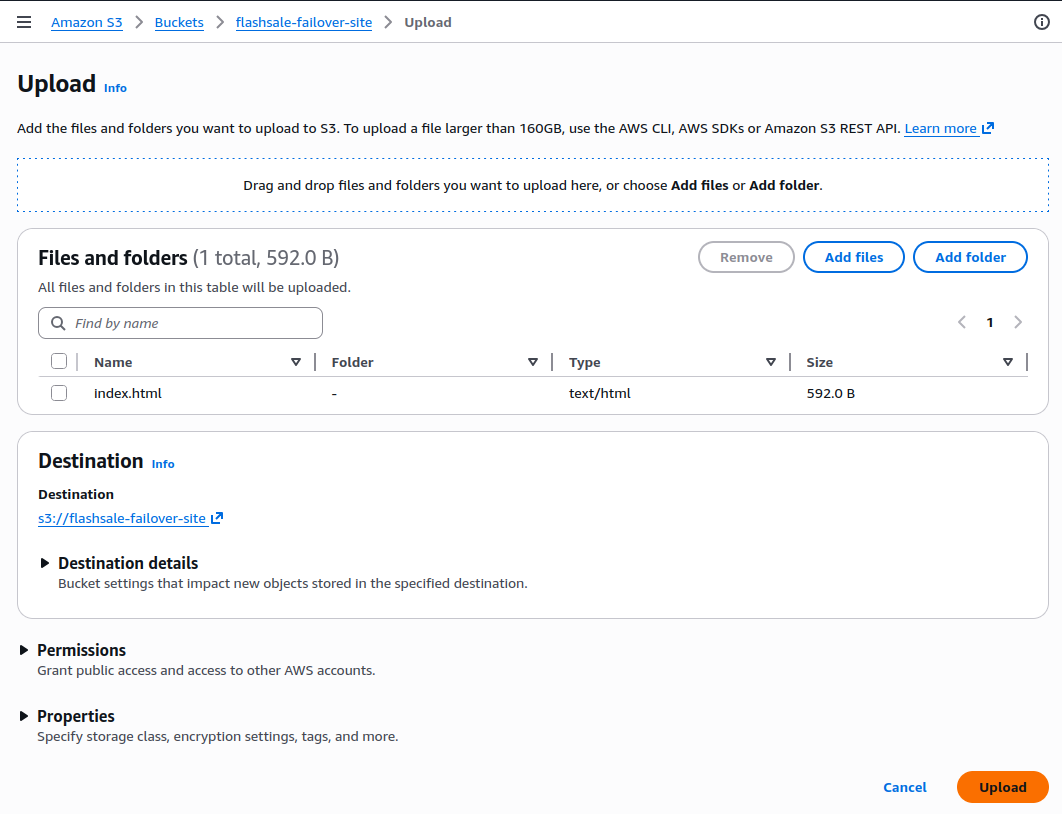
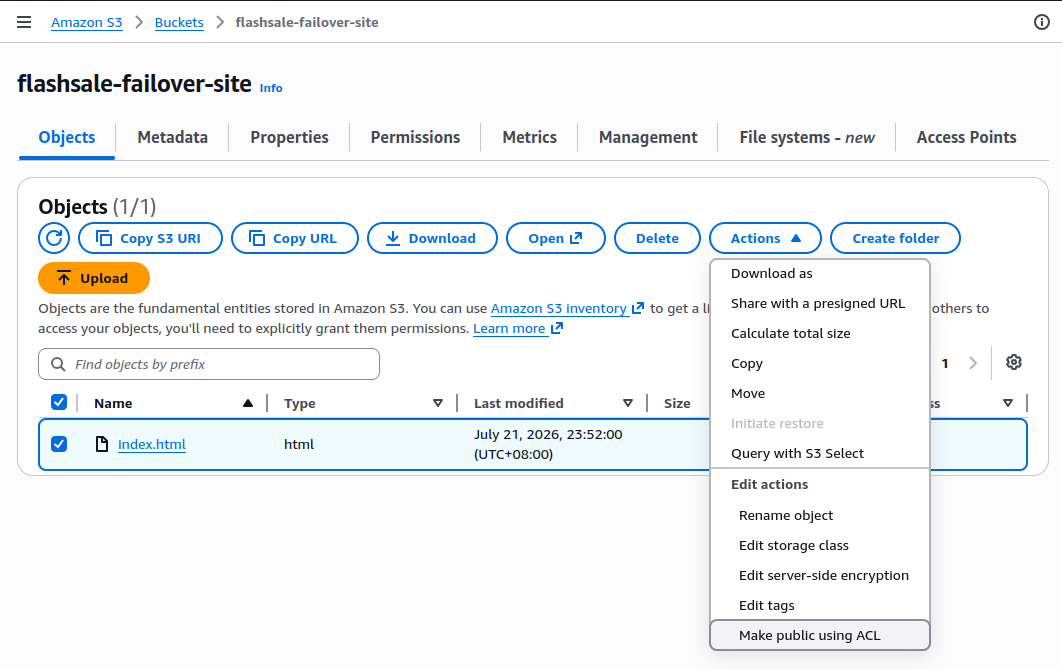
- After upload, go to the file, click Actions → Make public using ACL
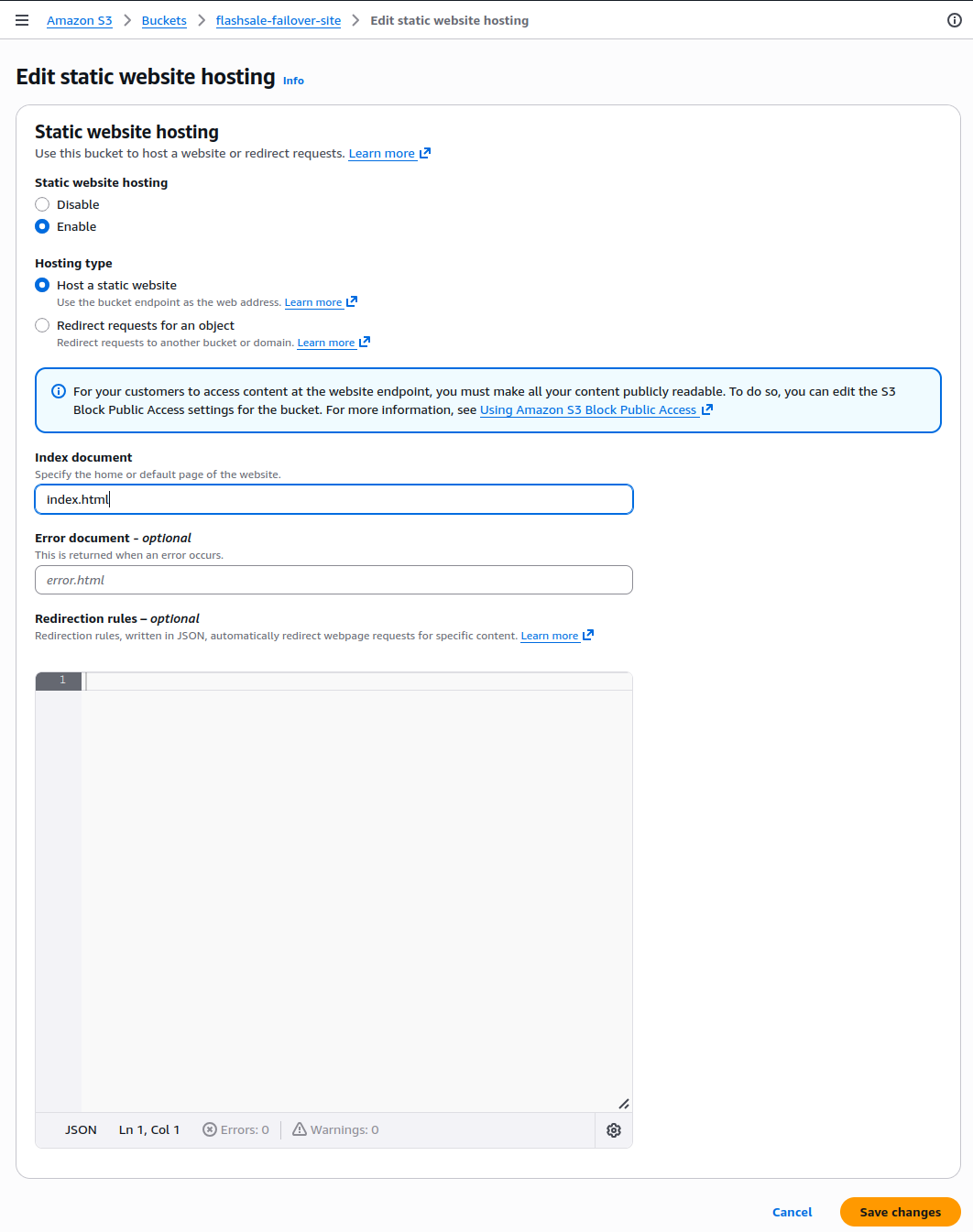
- Go to Properties, click Static website hosting
- Enable Static website hosting
- Hosting type: Host a static website
- Index document:
index.html - Click Save
We shall see the static website hosting is enabled with the new endpoint
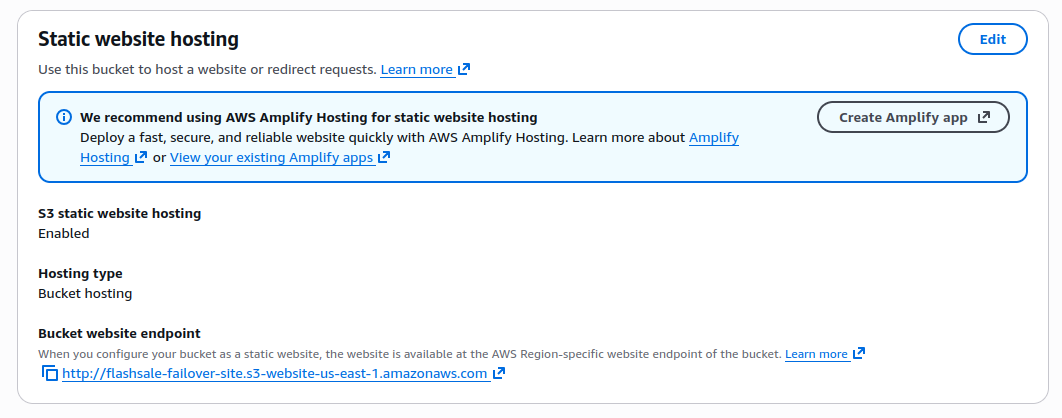
http://flashsale-failover-site.s3-website-us-east-1.amazonaws.comNext, we’ll configure the Backup CNAME Record in Route 53
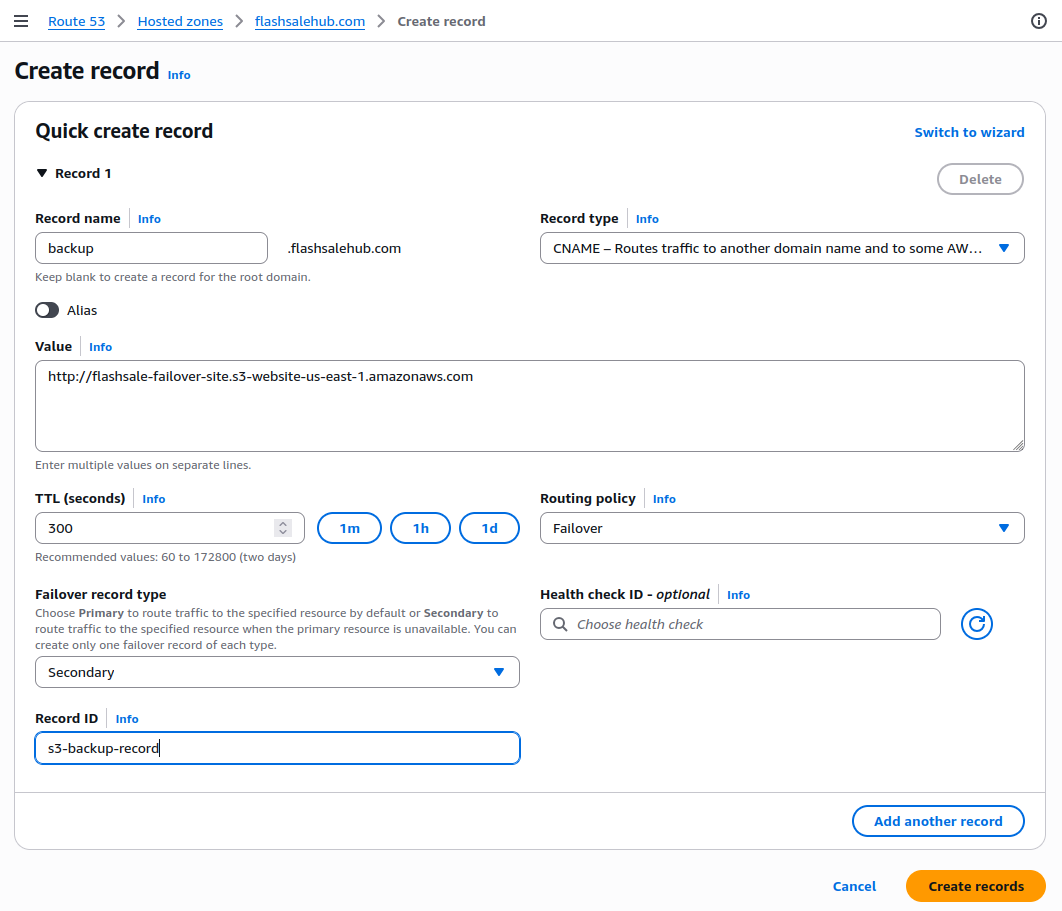
- Visit to Route 53 → Hosted Zones Click on your domain (e.g.,
flashsalehub.com) - Click Create record Fill in the record details:
- Record name:
backup(this becomesbackup.medicarehub.com) - Record type: CNAME
- Value:
http://flashsale-failover-site.s3-website-us-east-1.amazonaws.com(your S3 static website endpoint) - Routing policy: Failover
- Failover record type: Secondary
- Record ID:
s3-backup-record - Health check: Not required for Secondary record
- Record name:
- Click Create records
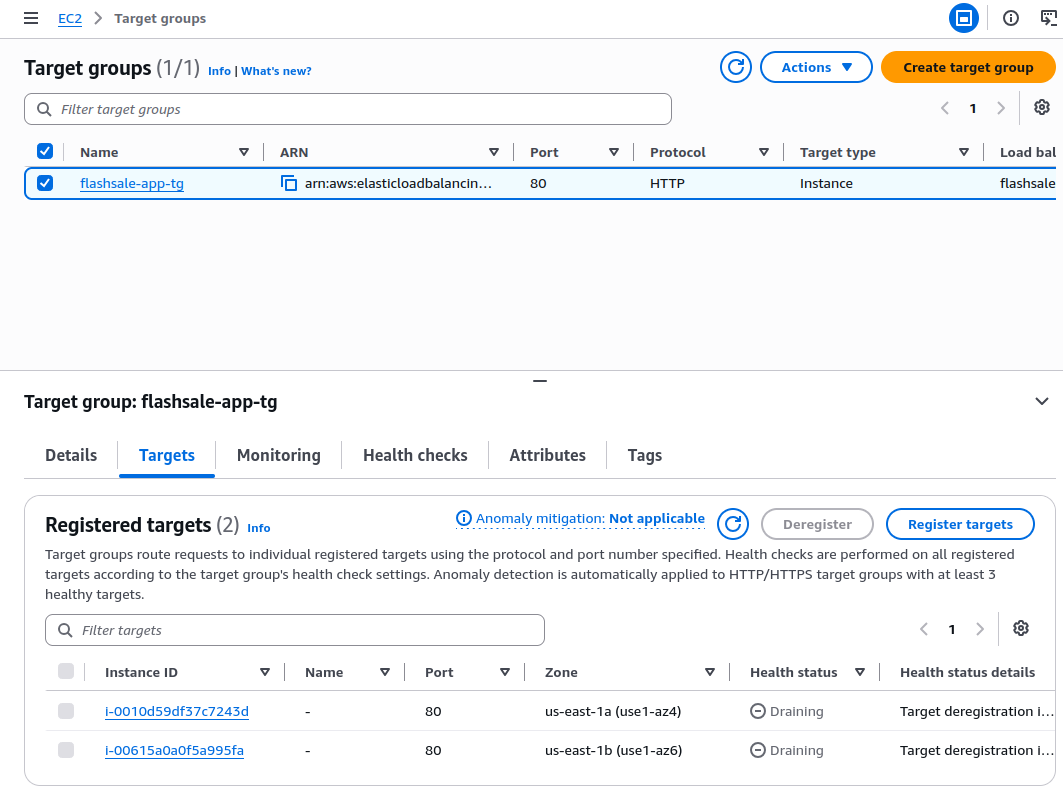
Next, we can test the fail-over by temporarily deregister all EC2 instances within the target group
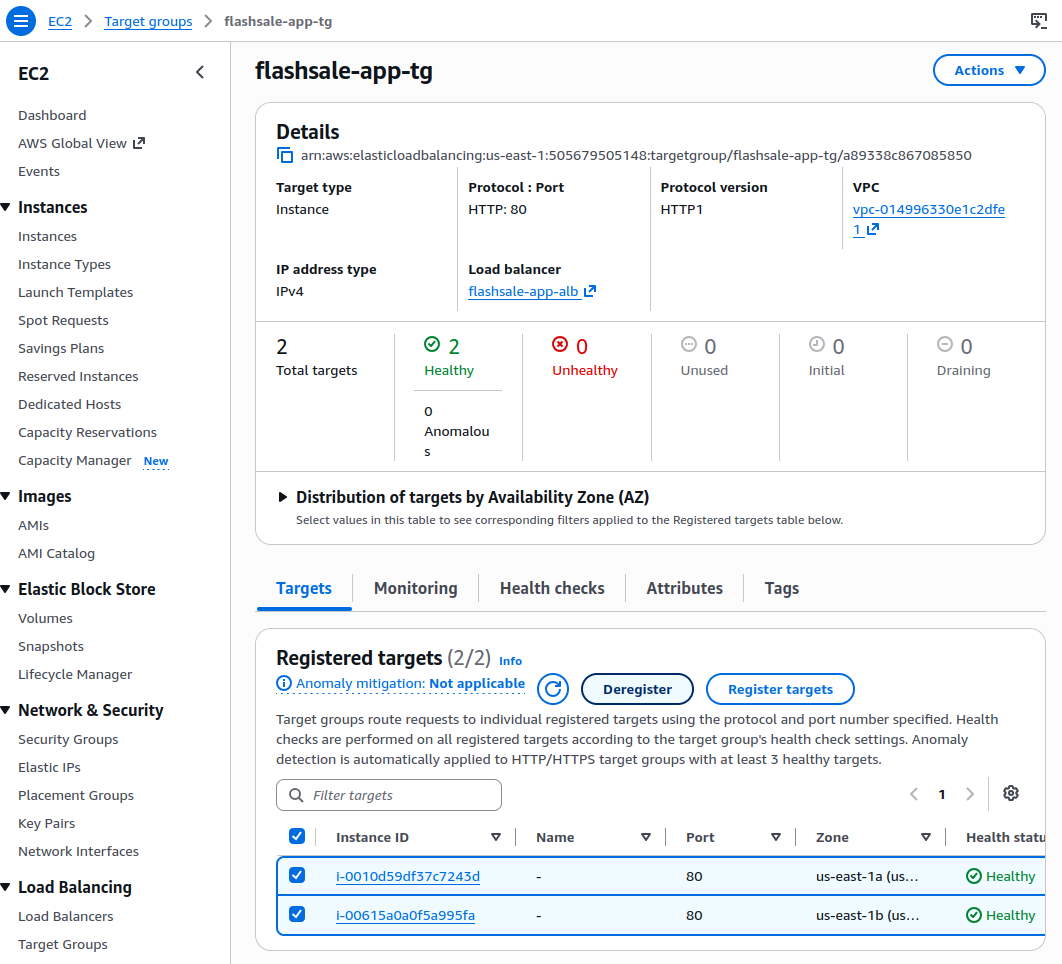
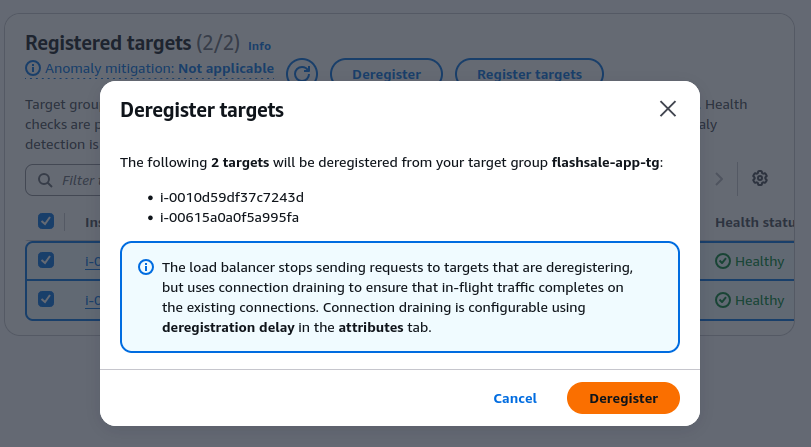
The ALB health check to fail (approx. 2–3 minutes)
Next, we can test the failover with one of these 2 methods
- If we have purchased the real domain (i.e. flashsalehub.com)
- Visit our domain (e.g., flashsalehub.com/) in the browser
- We should be redirected to the static S3 page via
backup.flashsalehub.com - Once tested, re-register our EC2 instances to bring the app back online.
- if we have NOT purchased the real-domain (like we are doing here)
- Use the ALB DNS name or S3 website endpoint directly to confirm failover behavior.
Summary
In this part, we have implemented a failover handling with Route 53 DNS where it can
- route user and traffic to the app only if it’s healthy
- automate redirection in case of ALB failure
- minimize downtime with optional static backup
We have demonstrated a highly available systems that maintain user trust even during infrastructure issues as part of high availability pillar. In part 4, we’ll continue to ensure the content file availability between EC2 instances.